



Ergonomic Monitor Mounts for a Healthier Desk Setup Today
Long hours at a desk can strain your neck, shoulders, and back. The right monitor mounting solution can transform your workday by aligning your eyes with the top of the screen, keeping your wrists neutral, and letting you switch between sitting and standing with ease. A thoughtful setup isn’t just about space—it’s about sustainable comfort and better focus.

In this guide, we explore how to pick an ergonomic monitor mount, how to position your displays for comfort, and how a HUANUO solution can fit into a broader workstation upgrade. If you’re used to brands like Ergotron monitor stands, you’ll notice there are many solid options that offer similar flexibility and reliability. A flexible mount can be the difference between a tired neck at 3 p.m. and a productive afternoon.
Why a Flexible Monitor Mount Matters
When your screen height is off, you unconsciously slump or crane your neck. A mount that allows you to tilt, rotate, and adjust the height helps you keep your head level and your posture upright. A single- or dual-monitor setup benefits greatly from a mount that can glide from portrait to landscape and move closer or farther away as needed. This is especially useful if you switch between tasks—like drafting in landscape and coding in portrait—or if you share your space with others.
Dual or multi-monitor configurations demand careful balancing of weight and reach. You want smooth adjustments, stable arms, and quiet operation. The right mount keeps the screens aligned, reducing the risk of eye strain and wrist tension during long sessions.
Choosing the Right Mount: Key Factors to Consider
For most home offices and professional desks, you’ll want a mount that supports monitors from 13 to 32 inches. Your screens should be under 17.6 pounds each, and back panels must feature VESA holes in 75x75mm or 100x100mm patterns. If you’re planning a dual-monitor setup, check that the mounts can accommodate two arms and provide adequate lateral adjustment so you can align both screens without crowding your keyboard.
When evaluating options, you’ll likely encounter references to familiar brands such as ergotron monitor stand options. While Ergotron is a trusted name, there are high-quality alternatives designed to meet the same ergonomic goals. The HUANUO Ergo Workstation line offers a robust, adjustable solution designed to maintain proper angles and ease of use while supporting a seamless sit/stand workflow.
Wall mounted monitor arms are another fixture you’ll see on the market. They’re excellent for saving desk space, but they can complicate repositioning or swapping to a different desk. For most people, a freestanding desk clamp or grommet mount provides simpler installation and easier height adjustments, especially when you pair the unit with a height-adjustable desk.
If you want a look that hides cables and presents a clean footprint, consider multi monitor brackets that align two or more displays in a single frame. They come in various finishes, making it easier to match your existing hardware. For larger displays—like a 32 inch desk mount—the mount must handle the tighter weight distribution and a longer reach. If you’re after a color match to lighter office spaces, white dual monitor stands are available from several brands; color can influence the perceived space of your setup, even if the hardware is functionally identical.
Setting Up for Comfort: Positioning Your Screens for Optimal Posture
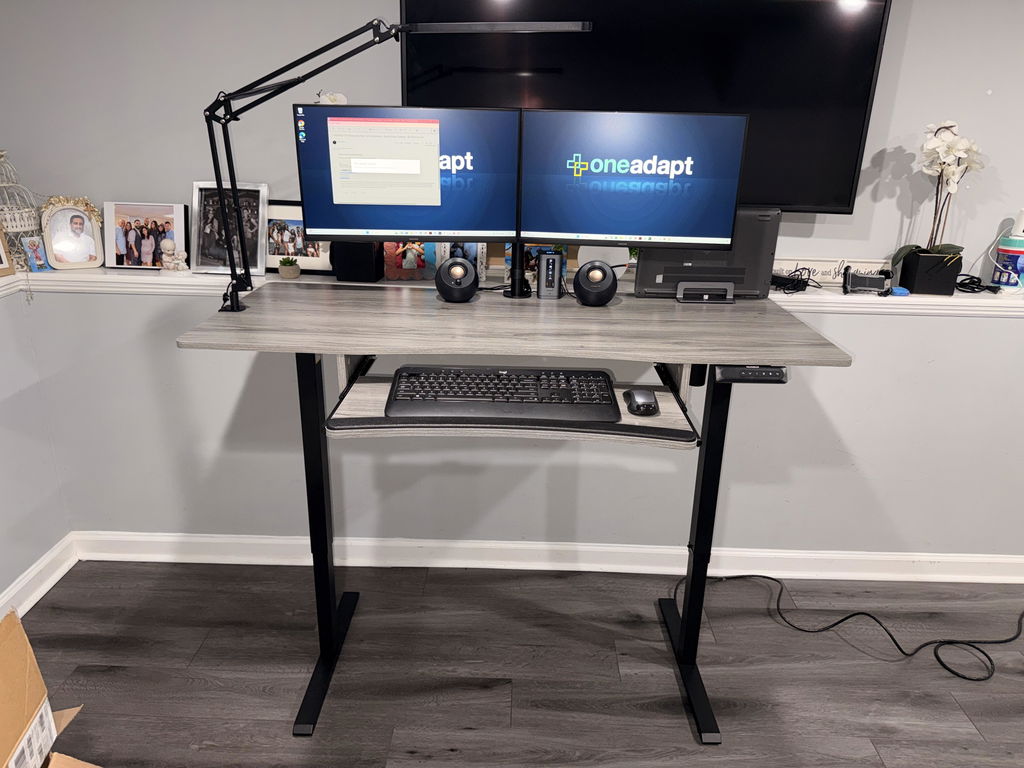
Begin by placing your primary monitor at eye level so the top edge sits just below your natural line of sight. The secondary monitor should be aligned with the primary screen so you can glance between them without turning your neck more than 15 to 20 degrees. With the HUANUO Ergo Workstation, you’ll enjoy adjustable tilt, rotation, and height that makes this alignment easy, whether you’re sitting or standing by your adjustable desk.
Next, consider your keyboard and mouse height. Your wrists should be straight, with your elbows near your body and your shoulders relaxed. A setup that keeps the forearms parallel to the desk surface helps prevent carpal tunnel symptoms and tension in the neck and upper back. If you need to, you can dial in a slight tilt to your primary monitor to reduce glare and improve screen readability, especially during long sessions.
As you refine your layout, remember that a modular monitor mount supports incremental changes. You can slide a screen closer for close-up editing or pull it back for more comfortable long-range viewing. The goal is to create a natural line of sight that minimizes head rotation and reduces eye strain across the workday.
Putting It All Together: A Realistic Setup You Can Maintain
Investing in an ergonomic monitor mount is an investment in daily comfort and productivity. A sturdy, adjustable system lets you tailor angle, height, and distance to your body. Pair it with a height-adjustable desk to amplify the benefits of posture-friendly work. You’ll notice less neck tension after long meetings, steadier wrists during typing, and a more balanced view across multiple screens.
When selecting peripherals, think not only about function but also compatibility with your desk layout and cable management. A clean, organized workspace reduces cognitive load, helping you stay focused on the task at hand. By choosing a flexible mount that supports up to 32 inches per display, you can confidently configure a two-monitor setup for multitasking, coding, video editing, or design work.
With careful placement and a bit of experimentation, you’ll find a configuration that minimizes strain and maximizes clarity. The right hardware, combined with ergonomic habits, yields a desk setup that feels natural rather than forced.


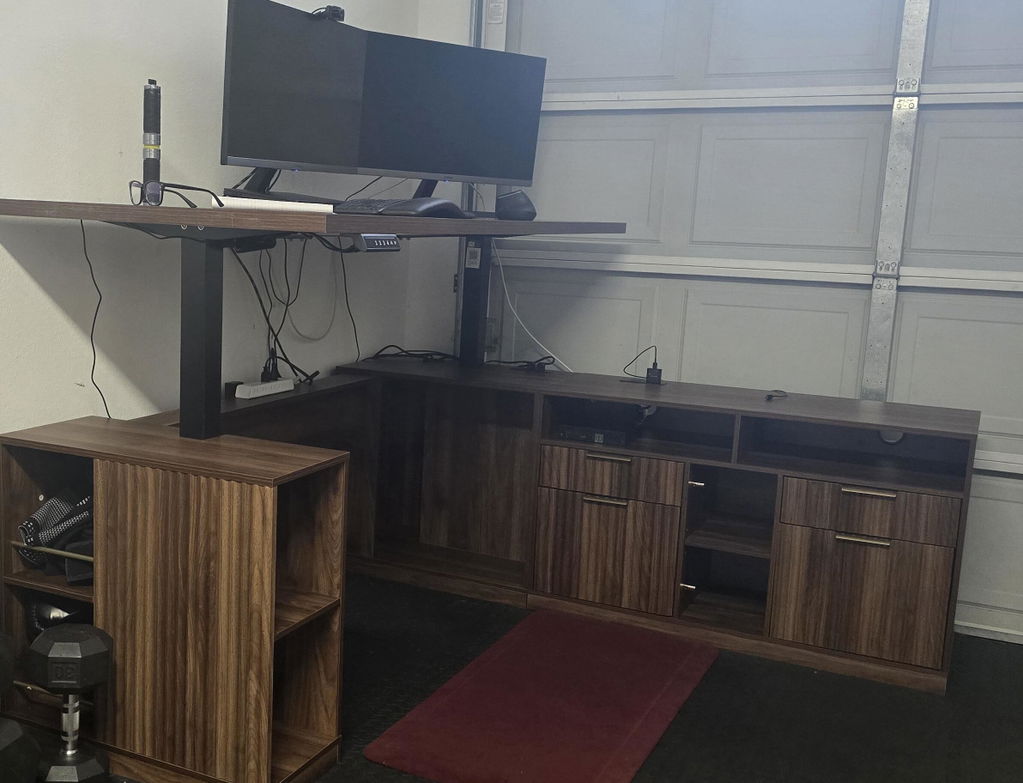
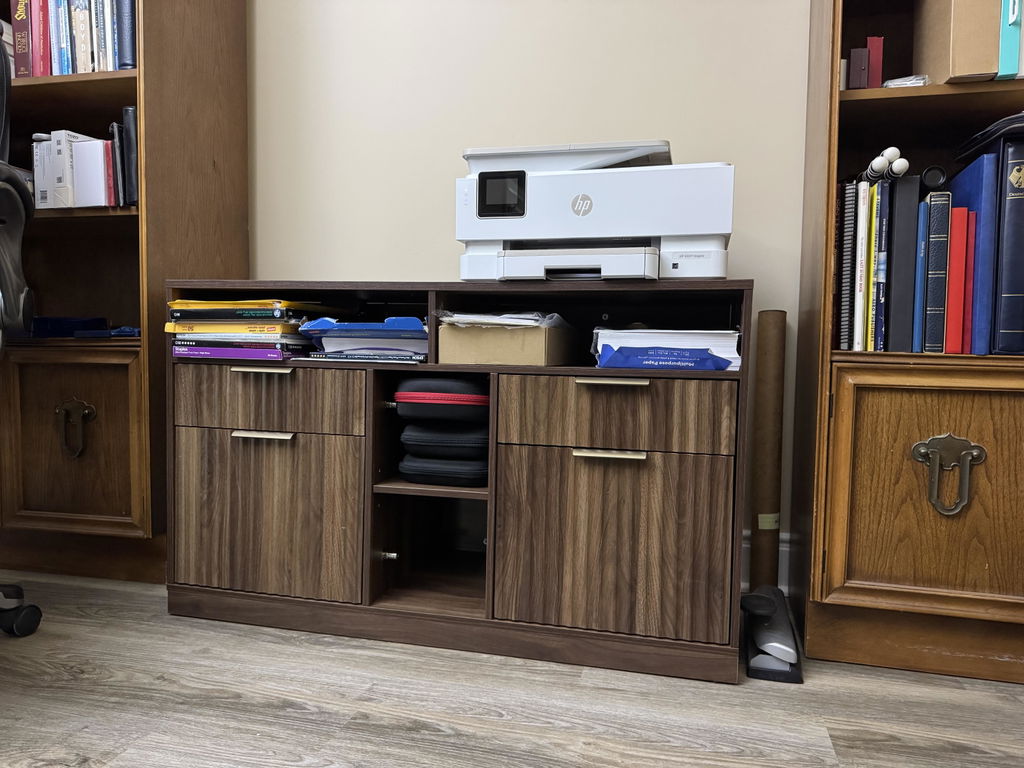
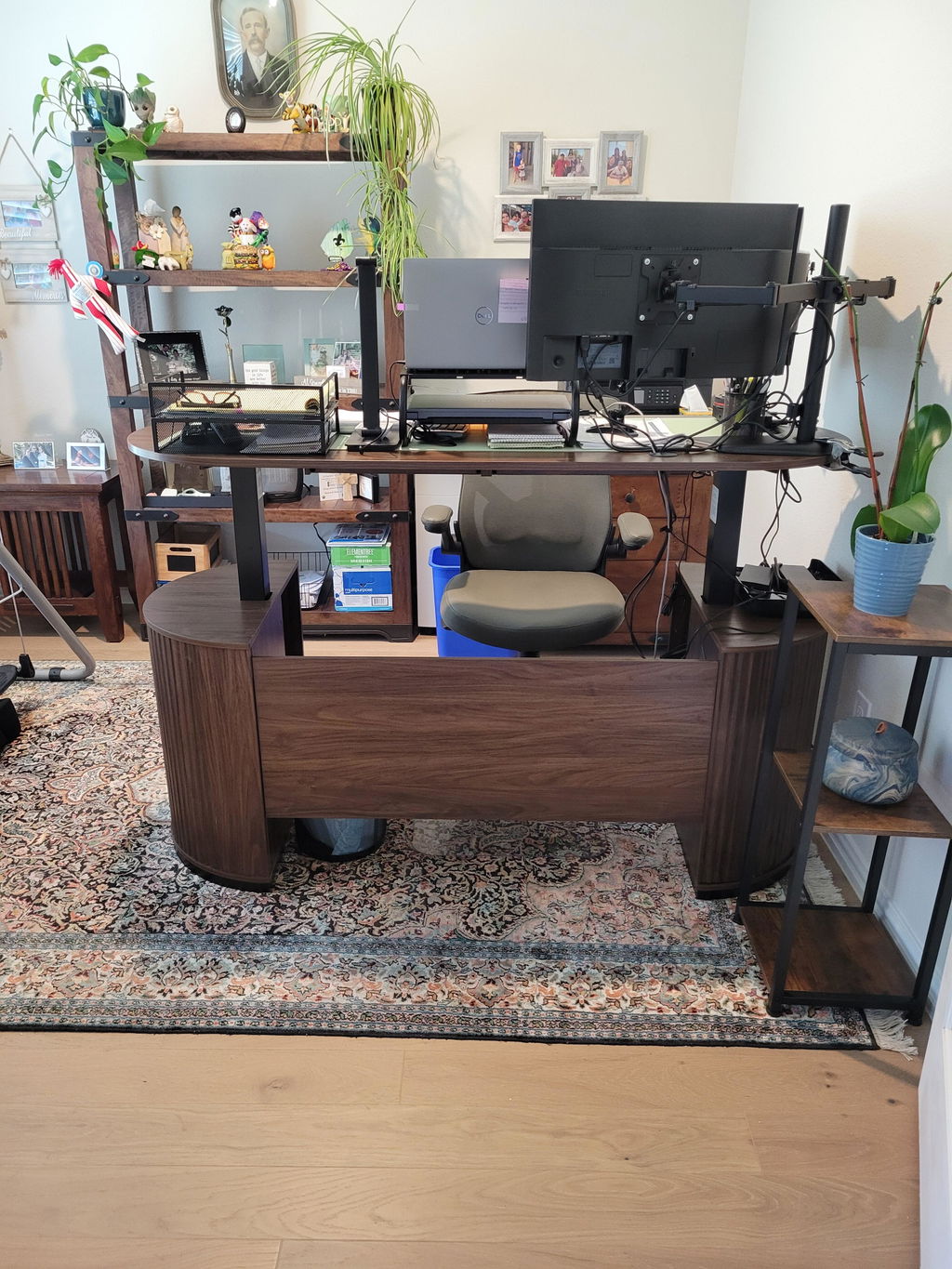
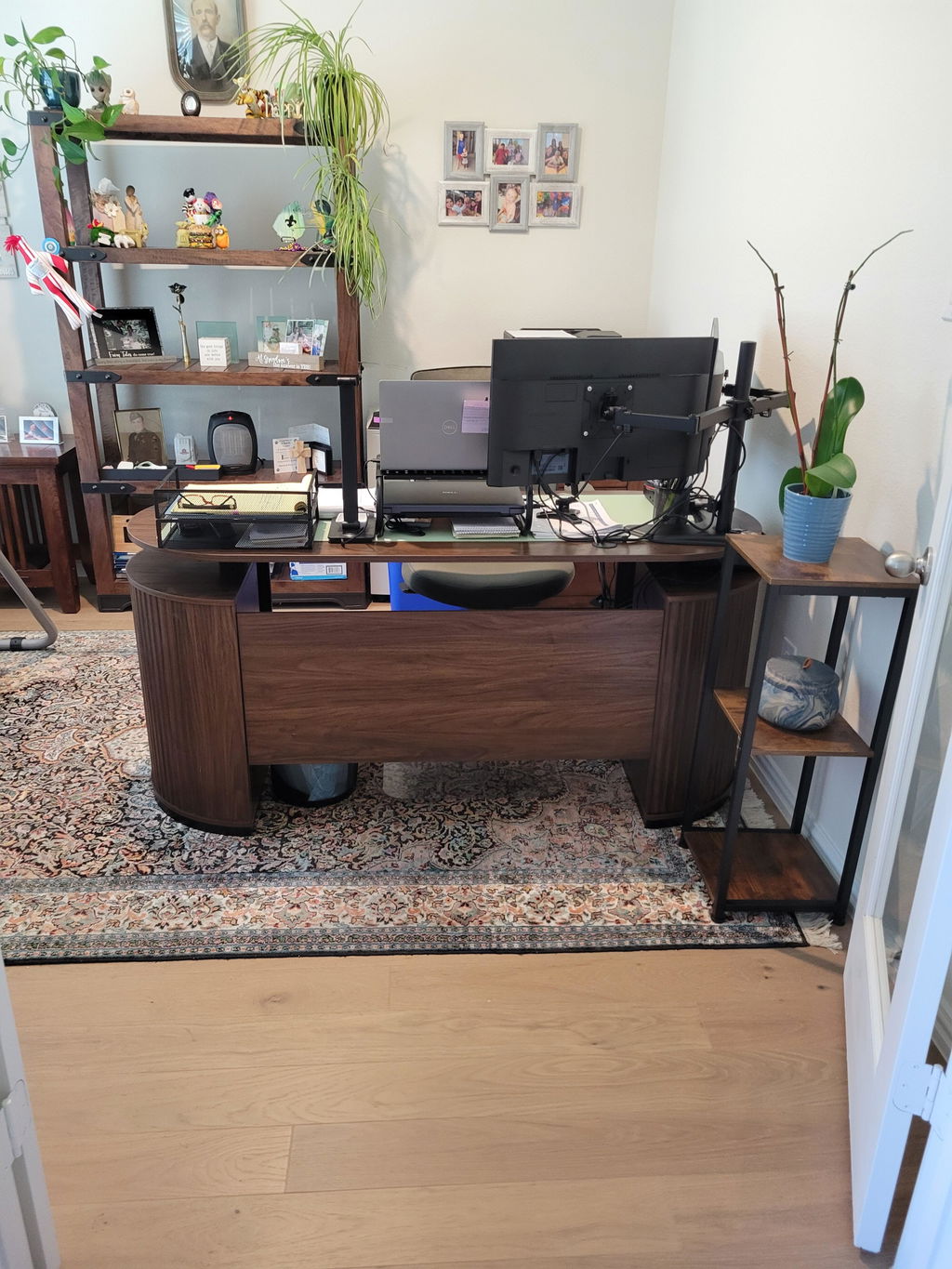
Share:
Ergonomic Gaming Setup with Neonnix + Titan Monitor Mount
Optimal Ergonomic Dual Monitor Setup for Standing Desks