



Why a thoughtfully designed workspace matters
Ergonomics isn’t a luxury; it’s a practical foundation for sustained focus, healthier posture, and fewer aches after a long day at the computer. A well-arranged workstation reduces strain on the neck, shoulders, wrists, and back, and it can even boost energy and productivity. The goal is not to chase a single perfect pose but to create a flexible setup that supports natural movement: sit and stand with ease, adjust your screen height to eye level, and position components so your joints stay aligned as you work.
When your workstation is thoughtfully configured, you’ll spend less time re-adjusting and more time solving problems, collaborating, and delivering results. The ideas below guide you through a practical, repeatable process for building a dual-monitor, standing-desk environment that feels natural from morning to night.
Assess your space and posture before buying
Begin by measuring your available footprint: desk depth, clearance under the desk for leg movement, and the distance from your eyes to the screens. A common rule of thumb is to place dual monitors at roughly arm’s length, but you may need to adjust based on screen size, seating height, and the distance of your chair from the desk. Your posture matters too: feet flat on the floor or on a footrest, knees at about a 90-degree angle, and elbows close to your torso without lifting your shoulders. If you share a small home office, you’ll want compact components that offer full adjustability rather than a fixed, bulky build.
Key components: what to prioritize
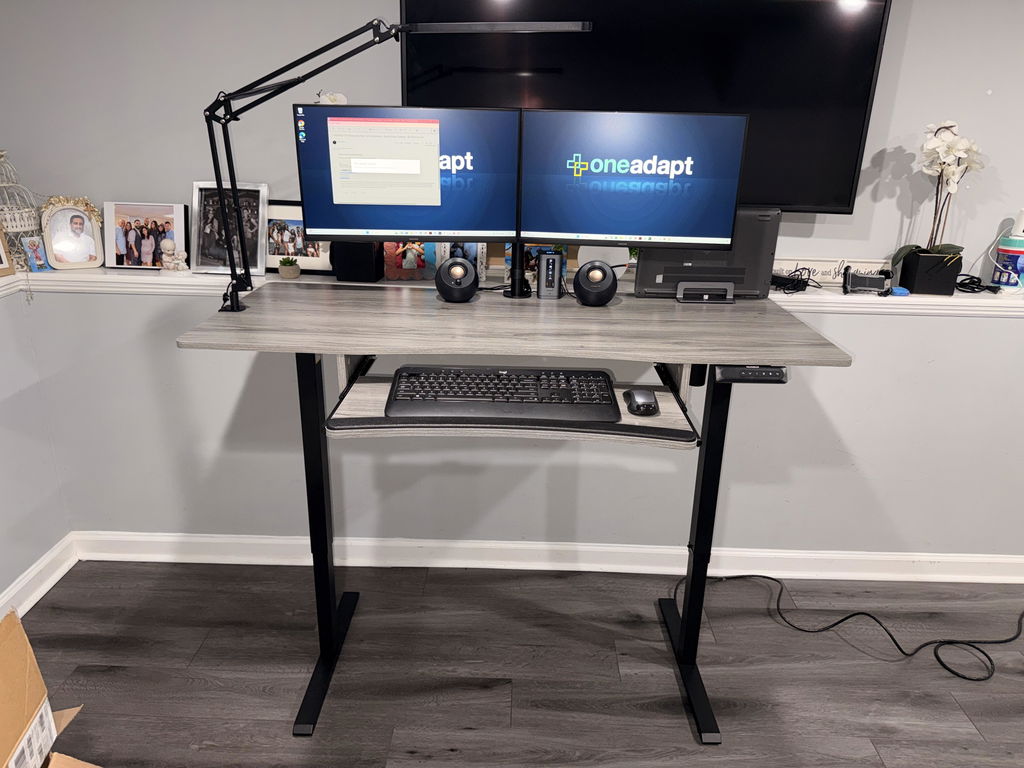
The core elements that define a comfortable workstation are the desk, the ability to switch between sitting and standing, a monitor mounting system, an ergonomic keyboard and mouse, and an accessible foot support. A good desk should offer enough rise to switch between postures without forcing you into awkward angles. A keyboard tray or ergonomic keyboard stack helps keep your wrists straight and your forearms in a neutral position during typing. A robust monitor mount or sits‑on‑the‑desk arm gives you the freedom to position screens for optimal line of sight and neck comfort.
While shopping, look for components with broad adjustment ranges. Height-adjust capabilities should accommodate your standing and sitting positions, and monitor arms should hold your screens steadily
without drift. The goal is to achieve a posture where your eyes meet the top third of the screens, your back is supported, and your wrists can rest in a neutral, natural position at the keyboard and mouse pair.
Standing desks: features that support comfort
A standing desk is more than a switch; it’s a tool for movement. When choosing, consider:
- Height range: Can you lower the desk to a comfortable seated position and raise it high enough for comfortable standing without hunching?
- Stability: Does the desk remain steady when extended or retracted, especially if you type vigorously or lean slightly?
- Surface and depth: Is there enough space for a dual-monitor setup, keyboard, mouse, and a small keyboard tray or arm without crowding?
- Ease of adjustment: Does it move smoothly with minimal effort and no pinching or wobble?
Beyond height, think about the workflow: a dedicated keyboard tray or shallow shelf can keep hands in line with forearms, reducing strain under long typing sessions. When a desk supports both seated and standing work, you’ll naturally vary your posture, which fosters long-term comfort and focus.
Monitor mounting and placement: aligning sightlines
Dual-monitor systems open up new ways to organize information, but with two screens you must stay vigilant about neck rotation and eye strain. A few practical guidelines help you set up for clarity and ease of use:
- Position monitors at or slightly below eye level so your head remains in a neutral position.
- Maintain a comfortable distance: typically about an arm’s length from each screen, adjusting for size and your visual acuity.
- Center the primary monitor at your line of sight and angle the secondary monitor slightly inward to minimize neck twisting.
- Ensure each display is stable and easy to adjust without tools, so you can fine-tune without breaking concentration.
- Check the back panel for VESA mounting compatibility if you’re using an aftermarket dual-monitor arm or stand.
One crucial compatibility consideration is the monitor’s size, weight, and mounting pattern. For example, some arms support screens in the 13–32 inch range that weigh up to 17.6 pounds, with VESA patterns of 75x75 mm or 100x100 mm. Before purchasing mounts, verify these three conditions hold simultaneously for each monitor you plan to use. If your monitors don’t meet these numbers exactly, look for arms with a slightly wider tolerance or an alternative mounting solution that fits your setup.
In practice, a carefully chosen monitor mount should offer tilt and swivel range, so you don’t have to crane your neck to see data at the corners of the screens. A well-balanced system also remains stable under repeated adjustments, a common requirement in fast-paced workflows where you reposition windows and tools across screens during the day.
Keyboard, mouse, and wrist alignment
Whatever your mounting choice, the keyboard and mouse deserve a dedicated, ergonomically arranged space. Placing the keyboard at elbow height keeps your wrists straight while typing, and using a mouse that’s within easy reach prevents you from reaching forward or to the side. A tray, shelf, or low-profile keyboard mount can position the keyboard and mouse close to your torso, reducing shoulder strain. The goal is to keep wrists in a neutral position, with forearms parallel to the desk surface, while your shoulders stay relaxed and square.
Another practical tip is to position your primary input devices so you can maintain a vertical forearm alignment when typing and mousing. If you notice consistent shoulder or wrist fatigue, re-evaluate the distance between screens, keyboard height, and armrest positioning. Small adjustments can yield big improvements in comfort over a long workday.
Footrests, seating, and total comfort
A footrest is one of those understated aids that can dramatically improve comfort, particularly when using a sit–stand desk or when your chair height isn’t perfectly aligned with your desk. A good footrest provides support for both feet, helping you maintain leg posture and reduce pressure under the thighs. When you add a hi‑back chair with adjustable headrest and a body-friendly seat height, you create a multi-point support system that lets you shift weight and posture without losing alignment. The interplay between seat height, foot support, and monitor height is a daily comfort equation that reduces fatigue and supports longer focus sessions.
For readers who are building a complete ergonomic kit, a product like the Ergo Workstation with a FREE Footrest can complete the setup by promoting natural leg alignment and continual micro-adjustments as you switch between tasks. A good footrest is not a distraction—it’s a core piece of the posture puzzle that helps you maintain healthy blood flow and reduce lower back stress over extended periods.
Here is what matters when selecting a monitor mount and standing desk:
Now let's compare options and tailor the setup to your space and work style. In the following sections, we’ll outline a practical step-by-step approach to choose components that fit your needs, budget, and daily rhythm.
Cable management, lighting, and environmental factors
Even the most ergonomic arrangement can feel off if cables are tangled or if glare from lighting causes eye strain. Proper cable routing keeps surfaces clean and reduces the risk of accidental tugs on arms or monitors. Consider using cable trays or clips to secure power and data lines along the desk frame, and leave slack for occasional repositioning. Lighting should be even and avoid direct reflections on screens. A mix of ambient light and task lighting can reduce eye fatigue and help you focus on the screen without squinting.
Putting it all together: a setup checklist
- Measure available space, desk depth, and leg clearance.
- Choose a height-adjustable desk with a comfortable standing range and solid stability.
- Select a monitor mount with appropriate VESA compatibility and weight capacity for your displays.
- Position the primary monitor at eye level and the secondary monitor slightly inward.
- Place the keyboard and mouse at elbow height, with wrists straight and forearms supported.
- Incorporate a footrest to support neutral leg posture during seated work.
- Organize cables and lighting to minimize glare and distractions.
- Test the setup by working for 20–30 minutes and noting any discomfort or awkward angles.
If you notice tension or fatigue, revisit height ranges, screen angles, and the distance between you and your monitors. Small adjustments can dramatically improve long-term comfort, and the most successful setups tend to be iterative rather than fixed from day one.
Maintenance and long-term care for ergonomic health
Ergonomic wellness is a continuous practice. Periodically reassess the position of your monitors, keyboard, and chair height as you accumulate experience with your setup. Check that your desk’s motors operate smoothly and that monitor arms remain stable after frequent adjustments. Clean surfaces and filters, and replace worn components as needed. A mindful approach to maintenance helps prevent discomfort before it becomes a problem and preserves performance over years of use.
Frequently asked questions
Q: How high should my desk be for standing work? A: The ideal standing height is when your elbows rest at about a 90-degree angle, with your forearms parallel to the desk, and your eyes level with the top third of the monitor(s).
Q: Do I really need a footrest? A: While not strictly required, a footrest supports knee and lower back comfort when seated for long periods and enhances overall posture during standing transitions.


Share:
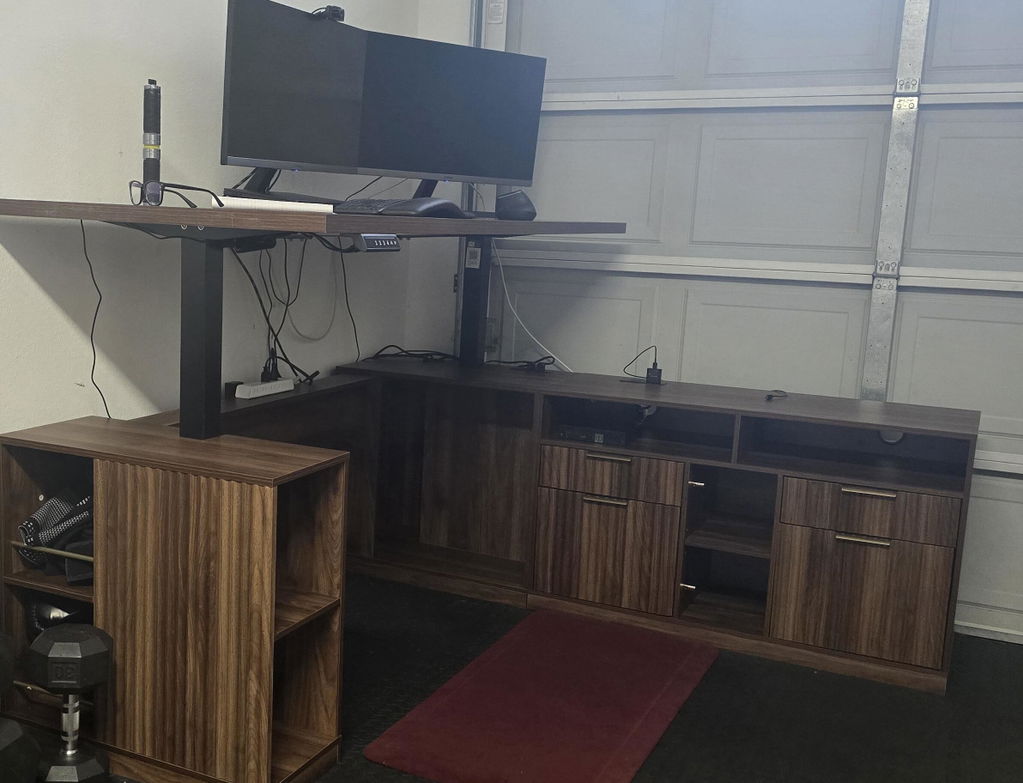
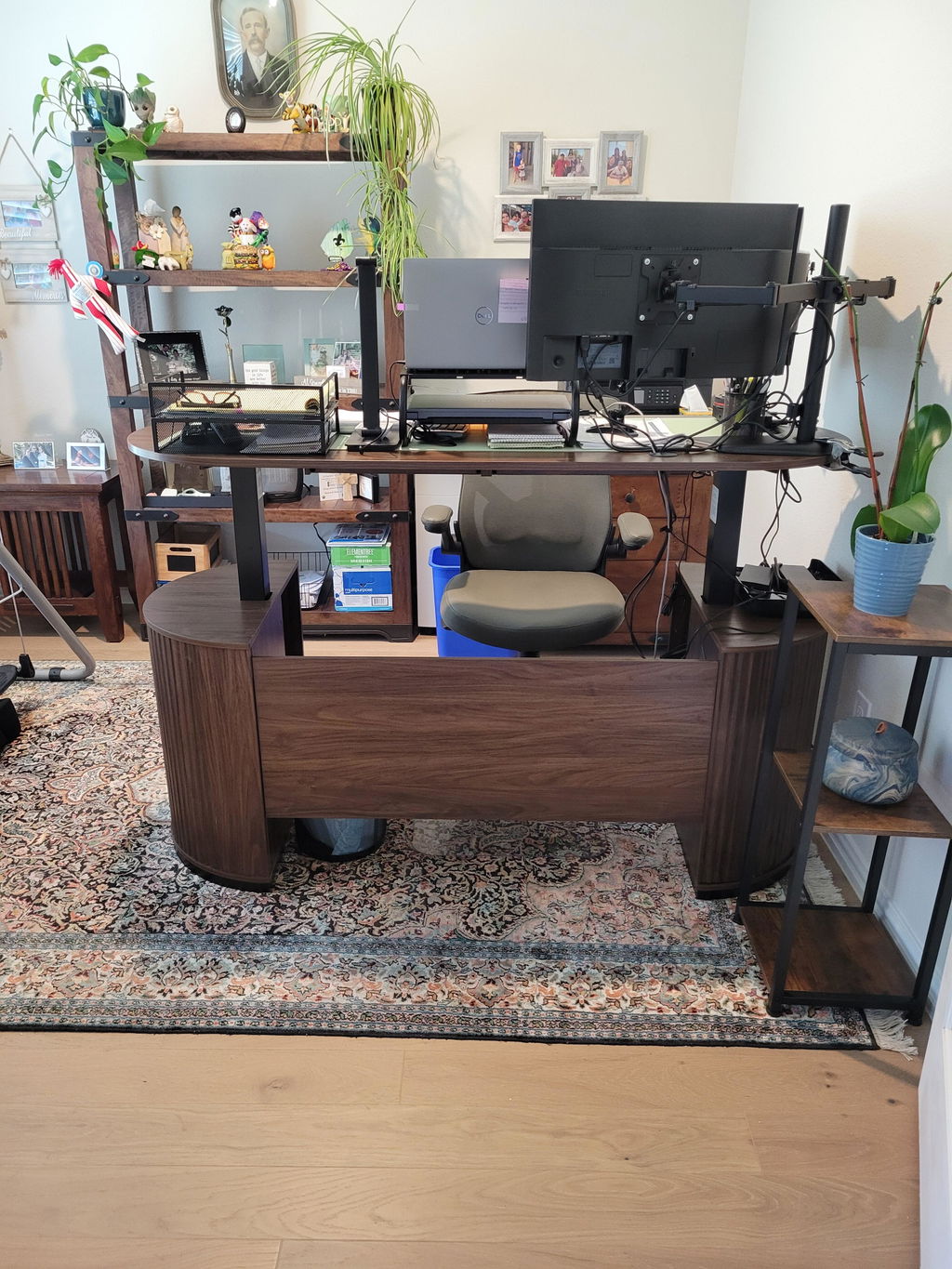
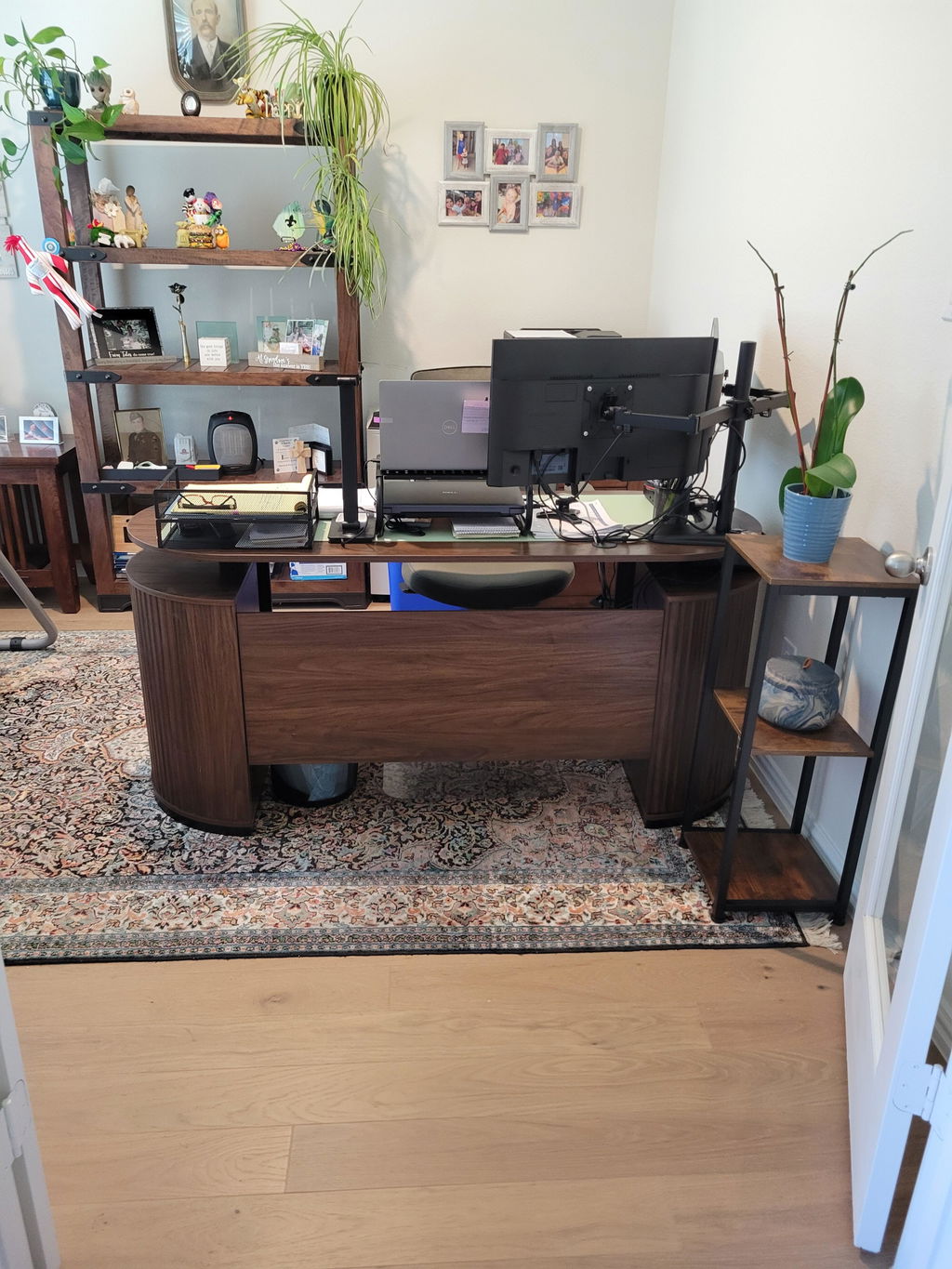
Designing a Cohesive Home Office with a 70" Desk, 71" Corner Bookshelf, and Charging Cabinet in Dark Walnut
Choosing a Standing Desk for Healthier Work Sessions: A Practical Guide Featuring the HUANUO 47 MCM Berlin