



In a busy home office, the printer is often one of the most frequently used pieces of equipment. Without a dedicated stand, cables creep across the desk, supplies scatter, and workspace becomes cluttered. A printer stand with cable management and a storage drawer can reclaim valuable desktop real estate, improve ergonomics, and simplify daily workflows. This guide walks you through how to choose the right stand and how to set it up for sustained organization and efficiency.
Why invest in a printer stand with cable management and storage drawer
A purpose-built printer stand offers more than a stable surface. It helps you:
- Free up desk or shelf space by relocating the printer to a dedicated platform with storage below or beside it.
- Hide and manage cables with built-in cable routes, reducing tangles and making maintenance easier.
- Keep essential supplies—paper, clips, manuals, and spare printer cartridges—within easy reach in a drawer or shelf.
- Improve mobility if the stand includes wheels, enabling you to reposition without lifting heavy loads.
- Protect your printer from accidental bumps on a stable, purpose-made base.
Key features to evaluate when choosing a printer stand
Top platform size and weight capacity
The top platform should be large enough to accommodate your printer (and any occasional items like a stack of paper or a small 3D printer). Check the dimensions and ensure the weight capacity meets or exceeds the printer’s weight plus any accessories you’ll place on top. A common home-office size is in the range of about 13–18 inches deep and 13–17 inches wide, with a weight limit that comfortably handles most consumer printers.
Tip: If you have a larger printer or a multifunction device, consider a stand with a wider top and a higher weight rating. You want stable support even when the printer vibrates during operation.
Cable management and accessibility
Built-in cable channels, clips, or grommets help route power and data cables neatly from the printer to the wall outlet and any connected devices. Look for channels that are easy to access from the front or side and that can accommodate the number of cables you typically use. A stand that hides the cables behind an integrated panel or within a discreet groove reduces visual clutter and dust collection on cables.
Storage drawer and shelving configuration
A storage drawer with dividers keeps office supplies organized and within reach. Additional shelves for paper, manuals, and file folders help you create a compact, all-in-one station.
When evaluating drawers, check the drawer’s depth, glide smoothness, and whether it locks for security or privacy when needed.
Mobility, stability, and lockable wheels
Wheels offer effortless repositioning, especially in shared spaces or rooms where you need to sweep or reconfigure. Look for wheels with 360-degree rotation and locking mechanisms to keep the stand stationary when in use. Swivel wheels add flexibility, but you’ll want a locked option for stability during printing.
Height, adjustability, and footprint
Consider the stand height relative to your desk and chair. A stand that is too tall or too low can create ergonomic strain when loading paper or changing printer settings. Some models offer adjustable height or removable extensions to fine-tune fit. The footprint—how much floor or desk area the stand occupies—also matters, especially in small or shared spaces.
Material, durability, and assembly
Durable materials like metal frames with sturdy surfaces resist wear and heavy use. Check the finish for chips or moisture resistance. Quick-assembly designs save time but still require basic tools or minimal setup. Read reviews about stability and ease of assembly to avoid surprises during installation.
Planning your layout: space, access, and workflow
Before purchasing, sketch your space and consider how you will access the printer, replace toner, and refill paper. A stand placed under or beside your desk should allow comfortable access to drawer contents and top-access to the printer without needing to reach awkwardly. If you regularly connect multiple devices or scanners, position the stand near power strips or surge protectors to minimize cable lengths and tangling.
- Measure available space: note the width, depth, and height clearance to ensure the stand fits without blocking drawers, doors, or chair movement.
- Assess accessibility: decide whether you need front-facing drawers or side access, and whether you prefer a stand under the desk or on top.
- Plan cable routing: identify outlet locations and ensure there is a place for power cords and any USB or Ethernet cables to run cleanly.
With these considerations, you can narrow down options to a model that matches your printer’s footprint and your space constraints.
Where to place the placeholder product: choosing a recommended option
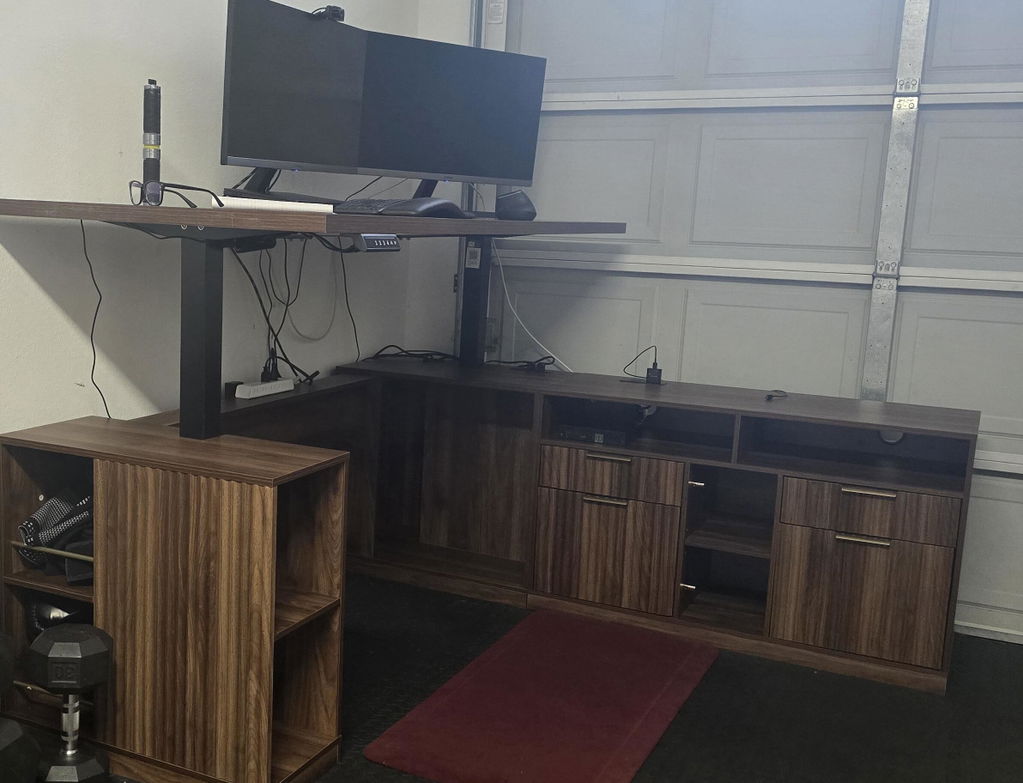
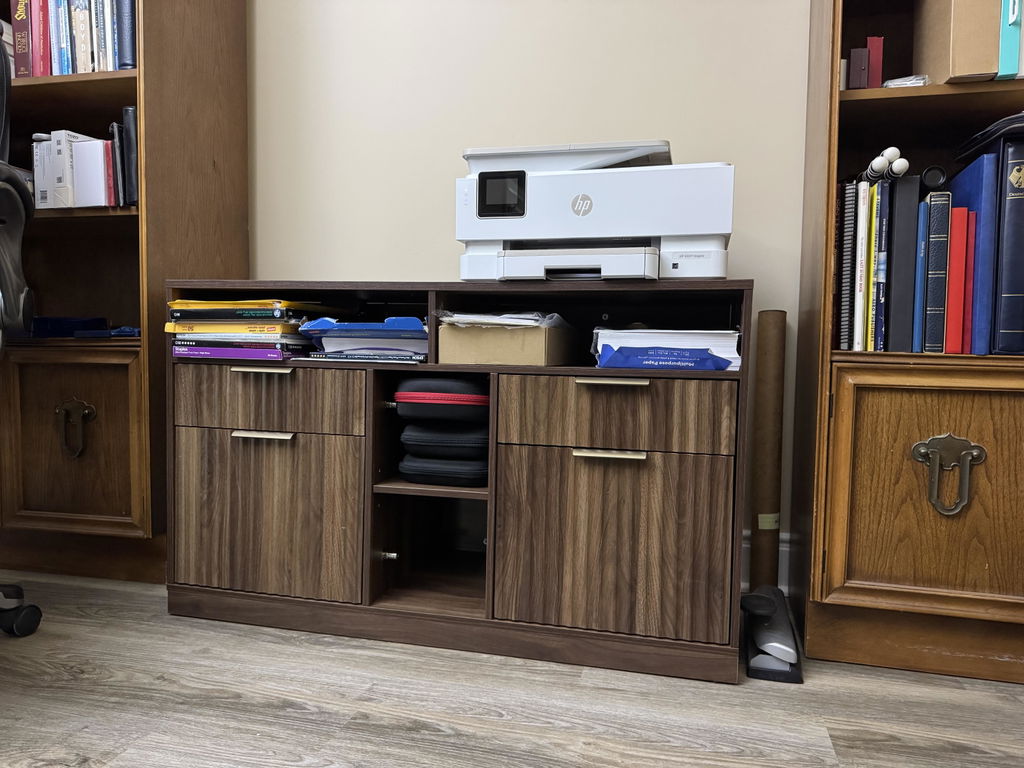
After weighing top platform size, drawer configuration, and mobility advantages, you may find that a two-tier printer stand with a 17.2” x 13.2” top and a dedicated storage drawer aligns with your needs. This configuration typically offers a balance of workspace, accessibility, and storage for home offices that must accommodate a printer and related supplies without crowding the desk surface.
Here is a recommended product that embodies these features.
Positioned between the setup guidance and the final considerations, this placeholder is meant to illustrate how a well-chosen stand can integrate into your existing workspace and simplify daily tasks.
Installation tips and best practices
Even simple two- or three-piece stands can feel intimidating if you’re unsure where to start. Follow these guidelines to ensure a stable, long-lasting setup:
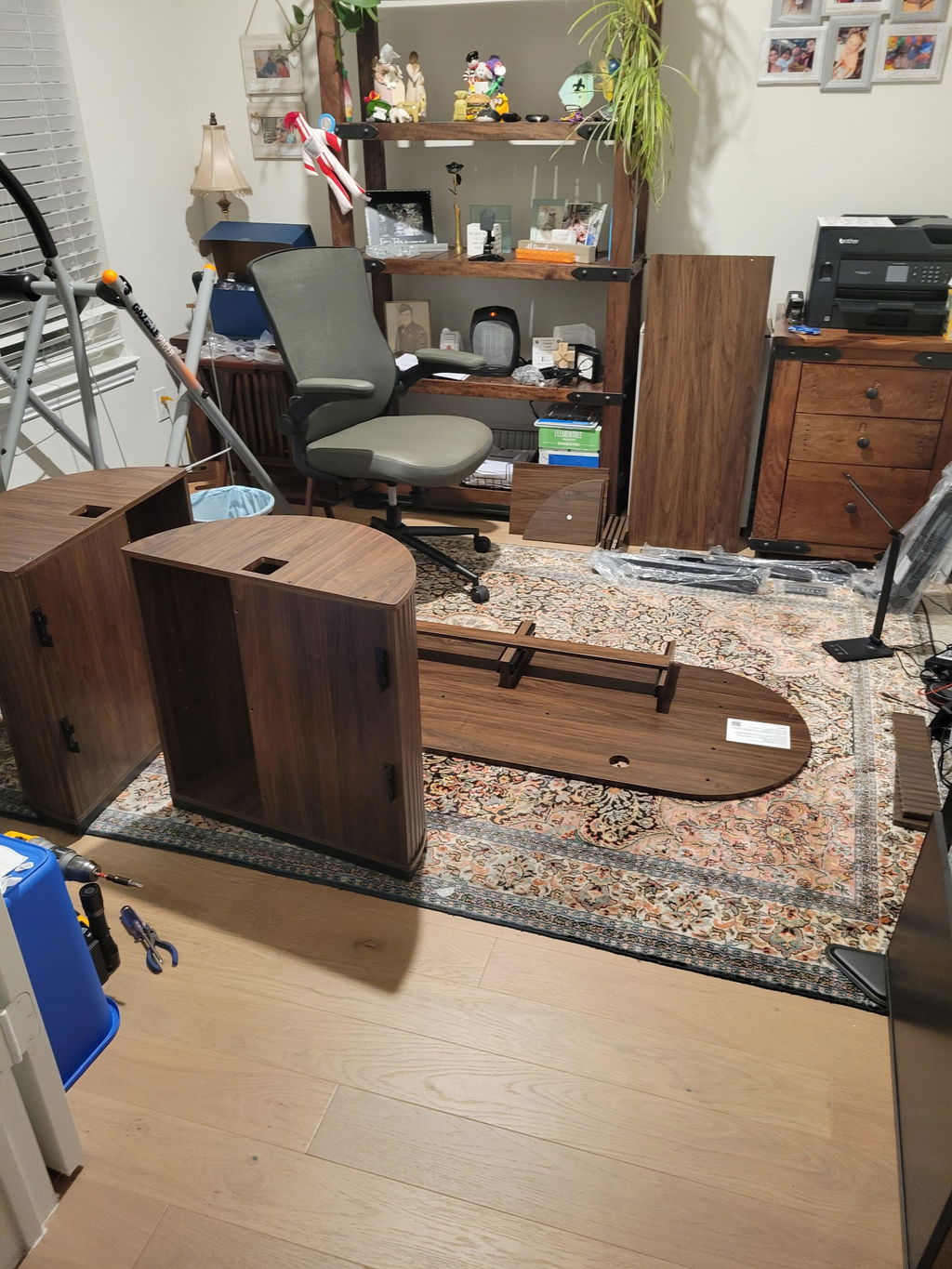
- Clear the area and lay out all parts before you begin.
- Assemble on a soft surface to protect surfaces and components, if instructions permit.
- Place the stand where you intend to use it most, then align the printer and cables for clean routing.
- Route cables through designated channels, then connect power last to avoid potential electric shock or short trips while assembling.
- Test mobility by rolling the stand to ensure smooth movement and verify that wheel locks engage securely.
Maintenance and care
To keep the stand looking good and functioning well, wipe surfaces with a mild cleaner, avoid excess moisture, and check screws or connections periodically. If you have a heavier printer or frequent use, periodically inspect wheel casters and drawer slides for signs of wear and lubrication needs. Keeping the drawer organized not only improves productivity but also reduces the risk of misplacing accessories during busy days.
Common questions and practical tips
- Can I use a printer stand with a 3D printer on top? If the platform is rated for the combined weight, yes. Always verify the weight specification and avoid exceeding it.
- Is a metal stand better than plastic for durability? Generally, metal frames offer greater stability and longevity, especially with heavier printers, but choose a material that fits your space and aesthetics.
- What if I don’t have under-desk space? A compact top-on-desk stand or a slim rolling cart can still reduce clutter while keeping cables organized.
Conclusion: a cleaner, more efficient workspace
Choosing the right printer stand with cable management and a storage drawer can transform a cluttered corner into a focused, efficient workspace. By considering top size, weight capacity, cable routing, drawer configuration, mobility, and ergonomic height, you can select a model that fits your printer, your workflow, and your room. After setup, maintain the organization with routine cable checks, drawer tidying, and periodic reassessment of space needs as your equipment evolves.


Share:
Designing an Ergonomic Home Office with the 70" Desk Straight + Luna Chair / Fluted Dark Walnut Bundle
How to Choose an Electric Standing Desk for Ergonomics, Stability, and Long-Term Comfort